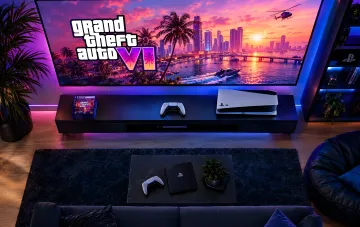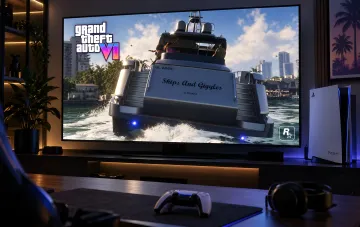
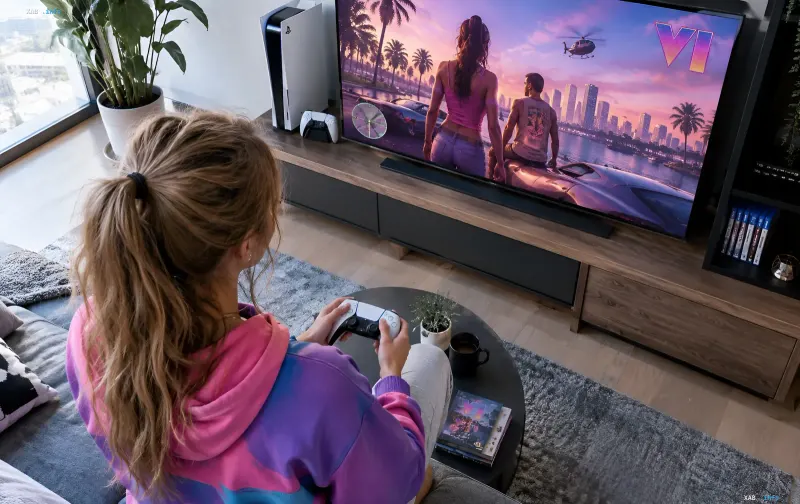
Grand Theft Auto VI, released on November 19, 2026, for PlayStation 5 and Xbox Series X|S, immediately became the center of attention for players and reviewers. On the base PlayStation 5, players experience frame rate drops, noticeable image blur, and periodic crashes during gameplay. However, according to early tests, some of these issues can be mitigated without upgrading hardware by properly configuring both the console and the game itself.
Stability on Base PS5 vs. PS5 Pro
According to Digital Foundry assessments, the base PlayStation 5 lags behind the Pro version in image clarity: unlike the Pro, it does not support PSSR technology, rendering the image at 1440p using spatial upscaling and intensive TAA anti-aliasing. The game runs noticeably more stably on the PS5 Pro, but the base console is generally sufficient to run GTA 6. Rockstar Games targeted 30 frames per second to preserve the detail of Leonida’s open world and the quality of visual effects, meaning frame rates can drop below 30 FPS during intense scenes on the standard PS5. A dedicated high-frame-rate mode has not been officially announced.
Clearing Cache via Safe Mode
Deleting or reinstalling the game does not always fix glitches, so users suggest several technical steps. The first is clearing the system cache: boot the console into Safe Mode by holding the PS button until the second beep, connect the controller via USB, press the PS button, and select «Clear Cache and Rebuild Database» and «Clear System Software Cache». These actions help smooth out stutters, although occasional frame drops due to the game's novelty and high load on the base console are still possible.
Disabling HDCP
The second recommended step is disabling HDCP. After exiting Safe Mode, go to system settings, open the «HDMI» section, disable the HDCP parameter, and perform a quick restart of the PlayStation 5. According to player experience, this sequence reduces micro-stutters and helps the system transmit the video signal to the display more stably.
Graphics: Motion Blur and HDR Calibration
You can partially improve the visuals directly in the game settings: in the Display section, adjust the Motion Blur Strength slider. Reviewers and players advise against turning off motion blur completely, as it can make camera movement overly sharp. For OLED screens, some users recommend keeping a higher blur level, while lowering it for other display types. If reducing blur does not help, check brightness and recalibrate HDR: on the PlayStation 5 itself via Settings → Screen and Video → Video Output → Adjust HDR (with HDR enabled) or in the game's Display menu via HDR Calibration. It is also recommended to ensure the TV's game mode is enabled if supported, as this disables unnecessary video processing and reduces input lag.
Conclusion
Combining these steps—clearing the cache, disabling HDCP, correctly configuring Motion Blur, HDR, and game mode—significantly smooths out GTA 6 stutters on the base PlayStation 5. However, eliminating occasional frame drops entirely is not possible due to the game's novelty and the heavy load on a base-generation console. Those who prioritize maximum stability and clarity should look toward the PlayStation 5 Pro with PSSR support.