Microsoft continues to expand the integration capabilities of mobile devices with the Windows 11 desktop system. One of the most sought-after features available through the Phone Link app is the ability to make and receive phone calls directly from your desktop or laptop. Users no longer need to take their smartphone out of their pocket to answer an incoming call or dial a number—simply open the Calls tab in the PC app. The feature works with both iOS and Android devices, although the setup process and available tools vary significantly depending on the smartphone's operating system.
Preparation: Updates and Prerequisites
Before proceeding with the connection, you must ensure that all system components are up to date. The Phone Link app should be updated via the Microsoft Store, and you should check for the latest Windows 11 updates itself. A critically important condition for calls to work on both devices is enabled Bluetooth—without it, the call feature will not launch on either iPhone or Android. For Android smartphones, data synchronization (contacts, notifications) can be done via Wi-Fi or mobile network, but Bluetooth connection remains mandatory specifically for making and receiving calls.
Connecting an iPhone: Step-by-Step Process
For iPhone owners, the procedure starts in the Phone Link app on the computer: you need to select the iOS option and scan the QR code displayed on the smartphone screen. Next, you will need to install the Link to Windows app from the App Store, confirm Bluetooth pairing, and allow contact synchronization in the iPhone Bluetooth settings. After completing these steps, the device will be ready to exchange calls and messages with the PC. It is worth noting that due to iOS system limitations, the feature set for iPhone remains basic: users get the ability to make and receive calls, send and receive SMS, and view and dismiss notifications.
Connecting Android: A Broader Toolkit
Android smartphone owners get a significantly wider set of integration tools. Setup begins in the Link to Windows app on the smartphone itself, where you must grant all required system permissions. Synchronization between devices can be carried out via Wi-Fi or mobile network, which speeds up data transfer, but active Bluetooth connection is again required for the calls themselves. After a successful connection, the user gains access to advanced features that go beyond the basic set available to iPhone users.
Making Calls and Managing Conversions
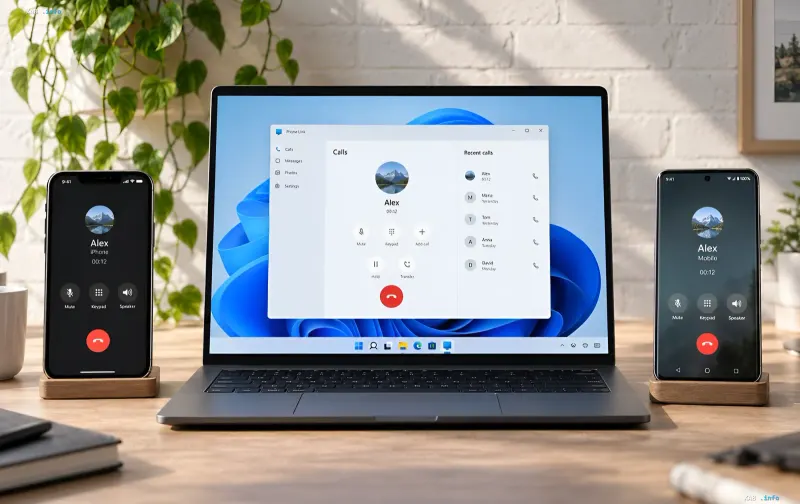
Once the smartphone is connected, you can make calls through the Calls tab in the Phone Link app. The interface allows you to search for the desired contact in the list or dial a number manually on the keypad. Standard controls are available in the call window: Mute (microphone mute), Keypad (additional numeric keypad), Speaker (speakerphone), as well as Pause and Transfer to manage an active conversation. On the right, the Recent calls list is displayed, allowing you to quickly return to recent calls. Ending a call is done by clicking the red button at the bottom of the interface.
Privacy and Security Settings
Regardless of the connected smartphone type, Microsoft recommends checking the parameters in the Settings – General section. In this section, you can hide some private information in notification banners and disable the unread message counter. This is especially relevant because Phone Link marks new notifications as unread until the user views or closes them on the computer. Such settings allow you to maintain control over what data is displayed on the PC screen in public or work environments.